Online Password Generator & Manager Integration Guide
In today's digital world, you manage dozens, if not hundreds, of online accounts. Each one is a door, and each password is a key. The problem is that creating and remembering a unique, strong key for every single door feels impossible. This often leads to using weak or repeated passwords, leaving your digital life dangerously exposed.
So, how can you create fortress-grade passwords without the headache of managing them all? The solution? Pair a dedicated, secure password generator with a trusted password manager. This guide shows you how to integrate our password generator into your workflow for an ironclad, efficient, and private security system.
This approach isn't just about convenience; it's about taking full control of your online safety. By using a specialized tool for generation, you ensure maximum randomness and strength. By using a manager, you guarantee you never have to remember a complex password again. Let's explore how to build this seamless security habit with a free password generator that puts your privacy first.
Why Integrate a Password Generator with Your Manager for a Secure Workflow?
Using your password manager’s built-in generator is a good first step, but pairing it with a dedicated tool like ours elevates your security to the next level. This combination creates a specialized workflow where each component does what it does best, resulting in stronger protection and better habits.
Enhancing Password Strength & Uniqueness with Every Generation
Password strength isn't just about length; it's about randomness, or what experts call "entropy." Humans struggle to create true randomness. We tend to use predictable patterns, birthdates, or familiar words. Even password generators built into some apps have limitations.
A dedicated online password generator is designed with one goal: to create completely unpredictable character strings. It allows you to:
- Maximize Customization: Easily adjust the length up to 64 characters and specify the exact mix of uppercase letters, lowercase letters, numbers, and symbols.
- Eliminate Bias: Ensure every password is mathematically random, free from any human patterns that could be exploited by cracking software.
- Create for Purpose: Generate different types of credentials, from ultra-secure random passwords for banking to memorable passphrases for master passwords or PIN codes for devices.
Streamlining Your Digital Security Habits
The best security practices are the ones you actually follow. A complicated process leads to shortcuts and mistakes. Integrating a generator and a manager makes strong security the easiest option.
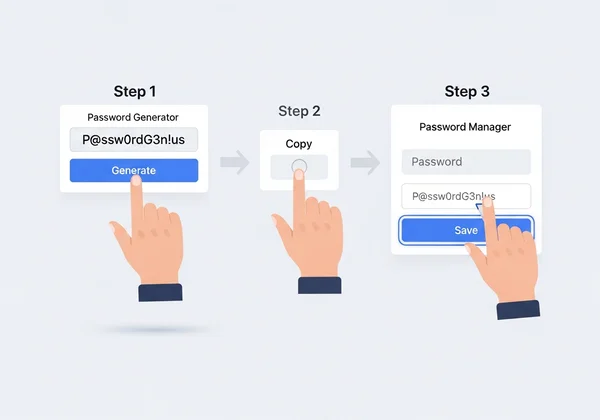
The workflow is simple and effective:
- Generate: Go to a trusted generator to create a new, strong password.
- Copy: Click a single button to copy it to your clipboard.
- Paste & Save: Paste the new password directly into your password manager's entry for the specific website or app.
This process takes seconds but builds a powerful habit. You no longer have to think about what password to create; you simply generate a secure one and save it. This removes friction and encourages you to use a unique, strong password for every single account.
The Client-Side Security Advantage
Are online password generators safe? This is a critical question. The safety depends entirely on how they work. Many online tools process your data on their servers, which creates a potential privacy risk.
This is where our client-side password generator stands apart. Our tool operates exclusively on the client-side. This means every password is generated directly in your own web browser. Your information is never sent over the internet or stored on our servers. We never see, record, or store anything you generate.
This client-side approach provides the ultimate peace of mind. You get the power of a highly customizable online password generator without ever compromising your privacy. It’s the perfect, trustless partner for your password manager.
Step-by-Step: How to Use Our Generator with Your Manager
Combining our password generator with your password manager is a straightforward process. Below are simple guides for popular services, followed by general best practices that apply to any password management tool.
Generating & Saving Passwords with Bitwarden
Bitwarden is a popular open-source password manager. Here’s how to pair it with our generator for maximum security:
- Create Your Password: Open a new tab and navigate to our password generator. Select your desired length and character types, then click "Generate."
- Copy the Password: Click the "Copy" button to save the new password to your clipboard.
- Add to Bitwarden: Open your Bitwarden vault and click "Add Item."
- Paste and Save: Fill in the username and website URL. In the password field, paste the strong password you just generated. Click "Save."
Integrating with 1Password for Seamless Security
1Password is known for its user-friendly interface. Here’s how to add a securely generated password:
- Generate with our tool: Use our tool to create a robust, random password tailored to your needs.
- Copy It: Use the one-click "Copy" feature.
- Create a New Login: Open your 1Password app or browser extension and click the "+" button to create a new "Login" item.
- Paste and Finalize: Enter the account details and paste your new password into the password field. Save the new entry.
Using Our Generator with LastPass
LastPass users can easily incorporate externally generated passwords into their vault.
- Generate Your Secure Password: Head to our secure password generator and create the perfect password for your new account.
- Copy to Clipboard: Click the "Copy" button.
- Add to Your Vault: Open your LastPass vault and click the red "+" icon in the bottom right corner. Select "Password."
- Paste and Save: Fill in the site's URL and your username, then paste the copied password into the designated field. Click "Save."
General Best Practices for Any Password Manager
No matter which password manager you use (Dashlane, KeePass, NordPass, etc.), the core workflow remains the same.
- Generate First: Always start by creating your password with a trusted, client-side generator.
- Use the "Add New" Function: Instead of letting the manager auto-save a weak password you typed, proactively create a new entry in your vault.
- Paste, Don't Type: Pasting the generated password avoids typos and ensures the complex string is entered correctly.
- Verify Character Requirements: Some websites have specific rules (e.g., "no special characters" or "must have a number"). Use the customization options on our tool to meet these requirements before generating.
Optimizing Your Password Manager Workflow for Maximum Security
Using a password generator and manager is a great first step. But to truly fortify your digital life, adopt some advanced habits. These habits will turn good security into great security.
Implementing Multi-Factor Authentication (MFA) with Your Vault
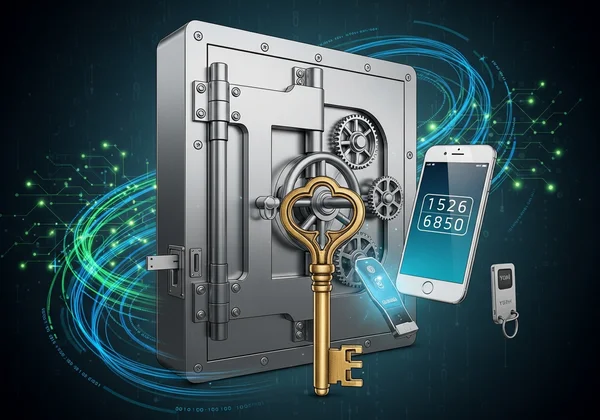
Your password manager is the vault containing the keys to your entire digital kingdom. Protecting it with only a single master password is a significant risk. This is where Multi-Factor Authentication (MFA), also known as Two-Factor Authentication (2FA), becomes essential.
MFA requires a second piece of information—typically a code from an authenticator app on your phone or a physical security key—in addition to your master password. This means that even if a criminal steals your master password, they still can't access your vault. Every major password manager supports MFA, and enabling it should be your top priority.
Regular Password Audits and Why They Matter
Over time, some of your passwords may become vulnerable. Data breaches happen, and old passwords might not meet today's security standards. Most premium password managers include a "security audit" or "watchtower" feature that automatically checks your vault for:
- Reused Passwords: The same password used on multiple sites.
- Weak Passwords: Passwords that are too short or simple.
- Compromised Passwords: Passwords that have appeared in known data breaches.
Make it a habit to run this audit once every few months. When it flags a weak or reused password, simply use our random password generator to create a strong replacement and update your account.
Recognizing Phishing Attempts & Protecting Your Credentials
The strongest password in the world is useless if you're tricked into giving it away. Phishing attacks are fraudulent emails, texts, or websites designed to steal your login credentials. They often look legitimate, mimicking banks, social media sites, or even your workplace.
Your password manager can help here, too. Most browser extensions will only offer to autofill your password on the exact website URL you saved. If you land on a phishing site with a slightly different URL (e.g., paypa1.com instead of paypal.com), your manager won't fill in the password. This is a huge red flag that something is wrong. Always be skeptical of urgent requests for your login information.
Empower Your Digital Life: Integrate for Ultimate Security
Creating strong, unique passwords for every account doesn't have to be a chore. By adopting a simple yet powerful workflow, you can achieve a level of security that was once reserved for experts. The combination is clear: a dedicated, client-side generator for creating passwords and a trusted manager for storing them.
This integrated approach gives you the best of both worlds: the mathematical certainty of a truly random password and the effortless convenience of secure storage. You are no longer the weak link in your own security. You are empowered with a system that is both robust and easy to maintain.
Ready to take control? Start fortifying your accounts today with passwords that are both secure and private.
Create a strong password now with our free and secure tool!**
Frequently Asked Questions About Password Management & Generators
Are online password generators truly safe to use?
Their safety depends entirely on their architecture. A generator that processes data on its server carries a risk. However, a client-side generator like ours is exceptionally safe. Because all generation happens locally in your browser, your password is never transmitted online or stored anywhere but on your own device, ensuring complete privacy.
How long should a password be for optimal security?
Security standards evolve, but current recommendations from bodies like the National Institute of Standards and Technology (NIST) suggest a minimum of 12-14 characters for random passwords. For maximum security, aiming for 16 or more characters with a mix of letters, numbers, and symbols is an excellent practice. For passphrases (memorable words), four or more random words are recommended.
What is the best way to manage the strong passwords I generate?
The best and most secure way is to use a reputable password manager. These applications are encrypted digital vaults designed specifically to store and organize your login credentials safely. They eliminate the need to remember anything except one strong master password.
Can I use this online password generator for all my accounts?
Absolutely. In fact, you should! The golden rule of password security is to use a different, unique password for every single online account. This prevents a data breach at one company from compromising your other accounts. Our tool makes it easy to generate a new, strong password for every site and service you use.
Do you store any of my generated passwords?
No, never. Our tool is built on a client-side-only principle. This means we have no server, no database, and no way to see, store, or track the passwords you create. What you generate is for your eyes only, and disappears the moment you close the browser tab. You can try our free tool with complete confidence.